Embedded Storefront
The fastest path to a native look and feel for your Moonbase-powered e-commerce is using our embedded storefront. It comes with pre-built UI for customer authentication, cart management, checkout flow, license activations and much more. Although the UI is included, we've exposed a number of style variables so that you can make it yours.
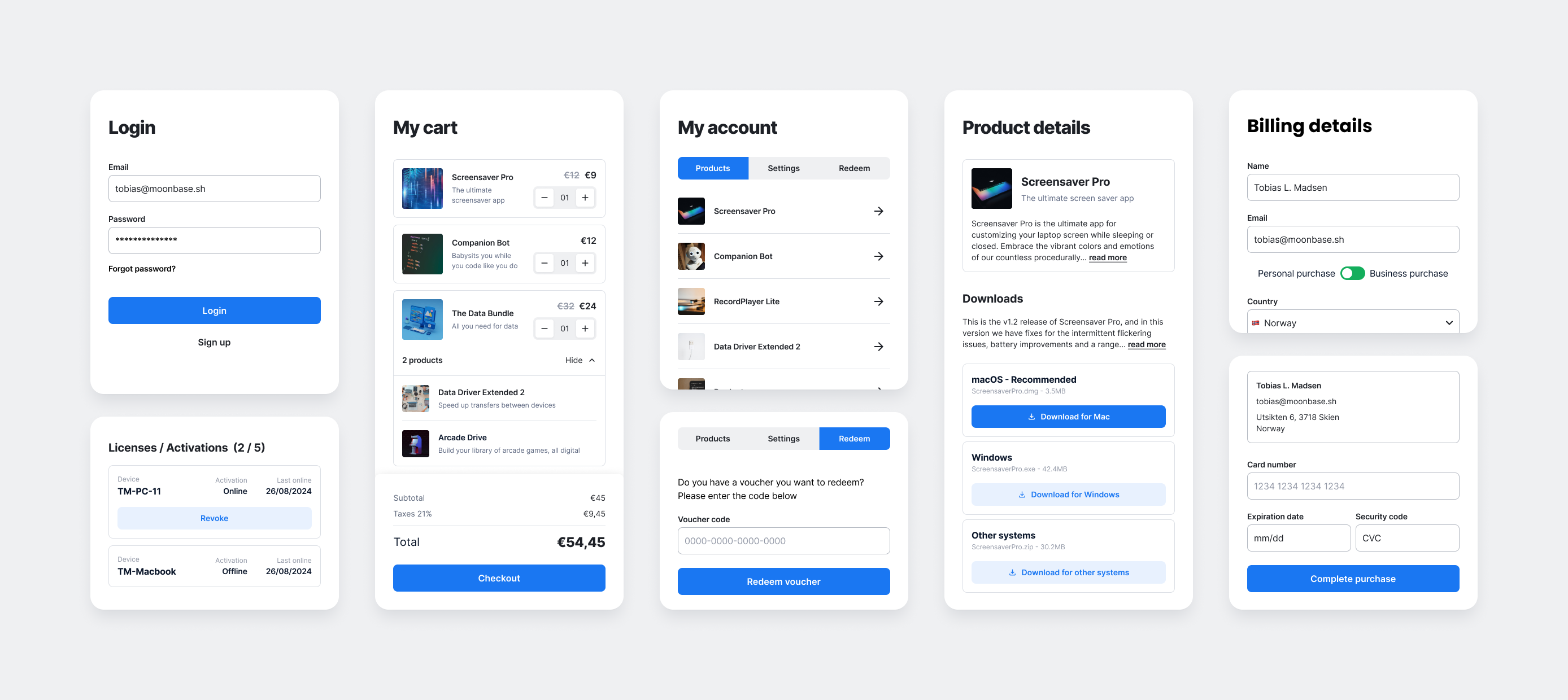
The embedded storefront can be included in your own websites, no matter what platform you use. On this page you will find instructions for popular platforms, but if yours is missing, reach out to us through the support channel, or at developers@moonbase.sh.
To make sure the module works on your website, take care to add your domain to the whitelisted domains of your Moonbase account in your account settings. If you experience CORS errors, the domain is not whitelisted correctly. If your site sets a Content-Security-Policy, allow https://<account-id>.moonbase.sh in frame-src, since that is where the sign-up captcha is drawn when you turn on Captcha under Account settings > Storefront > Features. Once live, you should also switch the storefront mode of your Moonbase account to direct customers to your website instead of the Moonbase hosted customer portal.
Getting started
To add e-commerce capabilities to your website, include our storefront script using the appropriate method for your platform:
Static websites and Javascript apps
A simple <script> element is enough to add the basic features, whether you're building a static website or a Javascript app with React.js, Vue.js, Svelte, or a similar framework:
<script src="https://assets.moonbase.sh/storefront/moonbase.js"></script>
<script>
    // TODO: Replace this with the URL of your Moonbase account
    Moonbase.setup('https://demo.moonbase.sh')
</script>
These scripts can be placed anywhere on the page, and should be included on every page you want storefront features available on.
The script exposes a global Moonbase object, so in a Javascript app you can call Moonbase.setup() from your own code whenever your UI is ready.
The CDN always serves the latest version, so you automatically get our improvements and bug fixes.
Read on for more details on how to configure buttons and render dynamic content.
Wordpress
In case you're running a Wordpress site, you can install the Moonbase plugin on your instance. This plugin will add the necessary scripts to your pages, and also give you the option to insert "Add to cart" buttons as part of your content, either using short codes, or as blocks in your content. The features of this plugin is quite minimal; if you need more extensive customization you should edit your theme directly.
Website builders
For other website builders, we've written some articles on how to get started:
Squarespace is a great way to make websites fast and easy, and can be combined with Moonbase to enabled advanced e-commerce capabilities. This article shows you how to get started.
Customize the experience
Everything from here on is optional, and only required if you need customizations.
Look & Feel
The Moonbase embedded storefront is themeable to some degree; you may tweak the brand color, select fonts, style buttons and cards, and more.
This is done using the theme property of the options given when first setting up the module:
{
    theme: {
        dark: true | false,
        colors: {
            primary: '#1A77F2',
            background: 'white' | 'gray',
        },
        fonts: {
            // Any built-in family, `inherit`, `system`, or a family of your
            // own. Defaults shown here, see Fonts below for the full set.
            heading: 'Montserrat',
            body: 'Inter',
        },
        corners: 'sharp' | 'soft' | 'round',
        buttons: 'outlined' | 'light',
        cards: 'outlined' | 'shadow' | 'white',
    }
}
Any further customizations done by your website is not officially supported.
If you are noticing styles from your own website bleed in to the Moonbase storefront, then try to avoid any !important style rules on your own website.
Fonts
theme.fonts sets two roles: heading for headings and display text, and body for everything else.
Each slot takes one of the built-in families, a keyword, or a family of your own.
The eight built-in families are Inter, Roboto, EB Garamond, Merriweather, Poppins, PT Serif, Montserrat, and Aleo.
The storefront loads them from https://assets.moonbase.sh.
{
    theme: {
        fonts: {
            // A built-in family, loaded for you
            heading: 'Poppins',
            body: 'EB Garamond',
        },
    }
}
Two keywords cover the cases where the storefront should load nothing at all:
'inherit'renders in whatever font your page already uses at that spot.'system'uses the storefront's own system stack.
{
    theme: {
        fonts: {
            heading: 'inherit',
            body: 'inherit',
        },
    }
}
For any other family, pass an object instead of a name:
{
    theme: {
        fonts: {
            // Name the family, and where to load the face from
            heading: {
                family: '"Noto Sans SC", sans-serif',
                stylesheet: 'https://cdn.example.com/noto-sans-sc.css',
            },
            // Or name a family your page already loads
            body: { family: 'Satoshi' },
        },
    }
}
family is used verbatim as a CSS font-family value, so it accepts a full stack as well as a single name.
stylesheet is added to your page as a <link rel="stylesheet"> and may be absolute or relative to the page; leave it out when your page already loads the family.
Configure options
When adding the storefront to your site, you can configure other parts of the experience by overriding any the settings listed below, this is their default values:
{
  toolbar: {
    // Whether or not to show the toolbar
    enabled: true,
    // The location of the toolbar, can be one of:
    // `top-right`, `top-left`, `bottom-right`, `bottom-left`
    location: 'top-right',
    show: {
        // Whether or not to show the cart button of the toolbar
        cart: true,
        // Whether or not to show the account button of the toolbar
        account: true,
        // Whether or not to show the Moonbase logo in the toolbar
        moonbase: true,
    },
  },
  auth: {
    signIn: {
        // Enables or disables customer log-ins
        enabled: true,
        // Hint can be a string with text to show during sign in
        hint: undefined,
    },
    signUp: {
        // Enables or disables customer sign-ups
        enabled: true,
        // Changes the behavior of the newsletter toggle, can be one of:
        // `OptIn`, `OptedInByDefault`, `OptOut` - GDPR may be relevant for you
        marketingConsent: 'OptIn',
    },
    // Controls password strength requirements during sign-up and reset, one of:
    // `default` (recommended) or `lax`
    passwords: 'default',
  },
  communicationPreferences: {
    show: {
        // Whether the newsletter opt-in checkbox is shown in the Subscribe,
        // Account, and Manage preferences views.
        newsletter: true,
        // Whether the product updates opt-in checkbox is shown in the same
        // views. Set to false to drop product updates from your storefront
        // entirely.
        productUpdates: true,
    },
  },
  checkout: {
    // Where checkout happens, one of:
    // `auto` (overlay on desktop and tablet, full-page redirect on phones),
    // `always` / `true` (always redirect), `never` / `false` (always overlay)
    redirect: 'auto',
  },
  cart: {
    // Overrides the quantity behaviour of the add to cart intents, one of:
    // `selectable`, `single`
    quantity: 'selectable',
    bundles: {
        // What happens when a bundle is added to a cart that already contains
        // one of its products: `replace` takes out the products that are sold
        // the same way as the bundle (subscription or one-off), `append`
        // keeps both side by side
        onAdd: 'replace',
        // Whether to list the contained products underneath the bundle in cart
        showProducts: true,
    },
    offers: {
      // Overrides what we show above relevant offers
      label: 'You might also like:',
      // Whether an eligible item offer is applied to the line it discounts
      // without the customer pressing its upsell card
      autoApply: false,
      cartWide: {
        // Whether to show progress towards the next cart offer
        showProgress: true,
        // Label for the saving row in the cart totals
        savingLabel: 'You save',
      },
    },
    leadMagnets: {
        // Quantity behavior specifically for lead magnets, one of:
        // `selectable`, `single`
        quantity: 'single',
    },
    // The smallest order the cart will check out, per currency in major
    // units, e.g. `{ USD: 25, EUR: 25 }`. No minimum by default
    minimumTotal: {},
  },
  promotions: {
    // Whether to show the sales you are currently running
    enabled: true,
    // Where the banner pins when the page has no promotion slot, one of:
    // `top`, `bottom`
    location: 'top',
    // The label on the dismiss button of banners and popups
    dismissLabel: 'Dismiss',
  },
  activation: {
    // Determines what device token files should be uploadable
    deviceTokenFileExtension: '.dt',
    // Sets the name of the downloaded liense token file
    licenseTokenFileName: 'license-file.mb',
    websiteLink: {
        // Whether or not to show a link to the product's website during activation
        enabled: false,
        // The label shown on the website link button
        label: 'Visit website',
    },
  },
  theme: {
    // See the above section for details on look and feel
  },
  pricing: {
    // How a price that lands on a whole number renders, one of:
    // `auto` (drops the fraction, so 10 renders as $10), `always`
    // (keeps the currency's own fraction digits, so 10 renders as $10.00)
    trailingZeros: 'auto',
    // Which marker identifies the currency, one of:
    // `narrowSymbol` ($10), `symbol` (US$10), `code` (USD 10),
    // `name` (10 US dollars)
    currencyDisplay: 'narrowSymbol',
  },
  // Opt out of automatic CSS zoom counter-scaling on hosts that ship a
  // fixed-width mobile viewport meta tag (e.g. Wix's `width=320`).
  // Leave this at false unless you specifically want the storefront to
  // render at the host's upscaled density.
  disableViewportCompensation: false,
}
To override them, simply pass in options with your configuration when setting up the storefront:
<script src="https://assets.moonbase.sh/storefront/moonbase.js"></script>
<script>
    // TODO: Replace this with the URL of your Moonbase account
    Moonbase.setup('https://demo.moonbase.sh', {
        toolbar: {
            // We have custom buttons to trigger account and cart,
            // so let's hide the default toolbar.
            enabled: false,
        }
    })
</script>
Checkout
checkout.redirect decides where checkout happens.
| Value | Behavior |
|---|---|
'auto' (default) | Overlay on desktop and tablet, full-page redirect to the hosted checkout on phones. |
'always' / true | Always redirect to the hosted checkout. |
'never' / false | Always use the overlay. |
The overlay keeps customers on your page, but it can never show Apple Pay or Google Pay.
Redirecting to the hosted checkout is what brings those wallets back.
'auto' takes that trade only on phones, where wallet usage concentrates, and keeps the overlay on tablets and desktops.
'auto' is the default, which is a change from earlier versions of the storefront where checkout always opened as an overlay.
Since the embedded script updates itself, set checkout: { redirect: 'never' } if you would rather keep the overlay everywhere.
A redirected customer is always brought back to the page they left, query string and hash included, once they have paid.
The checkout-completed event fires and the cart clears exactly as they do with the overlay, so your own listeners and the analytics forwarding need no change.
The hosted checkout also stays anonymous for the trip, prefilling from the order rather than signing the customer into a Moonbase account, which matches what the overlay does.
Minimum order total
cart.minimumTotal sets the smallest order the cart will check out.
Below it, the cart's checkout button gives way to a progress bar of the same size, which fills as the cart grows and tells the customer how much more to spend, for example "Spend $8 more to check out".
Once the cart reaches the minimum, the bar turns back into the checkout button.
An empty cart shows the bar too, so customers learn about the minimum before they add anything.
Moonbase.configure({
    cart: {
        minimumTotal: { USD: 25, EUR: 25, GBP: 20 },
    },
})
Amounts are keyed by currency code and given in major units, so 25 means 25 dollars rather than 25 cents.
Each visitor shops in a single currency and the storefront never converts one into another, so list every currency you sell in: a currency you leave out has no minimum.
Price formatting
Every price the storefront renders is formatted for the visitor's own locale, so the same amount reads naturally whether the visitor is in London, Berlin, or Tokyo.
The pricing options let you decide two things about that output: whether whole prices keep their decimals, and which marker identifies the currency.
{
    pricing: {
        // Whether a price landing on a whole number keeps its decimals:
        // `auto` renders 10 as $10, `always` renders it as $10.00
        trailingZeros: 'auto' | 'always',
        // Which marker identifies the currency, shown here as a British
        // visitor would see a price of 10 USD:
        // `narrowSymbol` = $10, `symbol` = US$10,
        // `code` = USD 10, `name` = 10 US dollars
        currencyDisplay: 'narrowSymbol' | 'symbol' | 'code' | 'name',
    }
}
trailingZeros only affects prices that land on a whole number.
Anything with a fraction, like 9.99, always shows its decimals no matter which setting you pick.
Choosing always follows each currency's own convention rather than blindly appending two decimals, so 10 USD becomes $10.00 while 1000 JPY stays whole, because yen amounts are never written with decimals.
currencyDisplay picks which of the four currency forms to use, and nothing more.
The symbol itself, and whether it sits before or after the amount, always follows the visitor's locale.
The examples above are what a British visitor sees for a price in US dollars, and a visitor elsewhere sees the same option rendered the way their own locale writes it.
Both options apply everywhere the storefront prints a price, including the prices you render into your own page with data-moonbase-render.
Cart offers
Offers are conditional discounts you configure in Moonbase, and they come in two scopes.
An item offer discounts one product or bundle, and is the upsell the storefront shows in the cart under the "You might also like" label.
The customer opts into it, either by using the offer button the storefront renders or by passing offer_id to add_to_cart yourself.
A cart offer discounts the whole order once the cart clears a threshold, for example 10% off orders over 100 euros, or 15% off once there are three items in the basket. There is nothing to opt into and nothing to wire up: the storefront attaches the best cart offer on its own as the customer shops, and drops it again if the cart falls back below the threshold.
While a cart offer is still out of reach, the cart shows a progress meter with how much further the customer has to go, whether that is an amount to spend or a number of items to add.
If you run tiered offers, the meter keeps working after the first one applies, and starts tracking the next, more valuable tier.
Turn the meter off with cart.offers.cartWide.showProgress.
The cart totals also gain a saving row, labelled by cart.offers.cartWide.savingLabel.
Note that this row reports every saving on the order, not only the part that came from the cart offer, so product discounts and item offers are counted in it too.
Two limits are worth knowing about: cart offers always use a percentage discount, and they are never applied to subscription renewal orders.
Cart offers do not raise events of their own.
To react to one being applied, listen for storefront-updated and read the current cart.
Applying item offers automatically
An item offer only reaches a cart line when the customer presses its upsell card, and that card is hidden once the offer's product is already in the cart.
A customer who adds that product before the one that qualifies them for the offer therefore ends up with a real discount and no way to claim it.
cart.offers.autoApply closes that gap.
Moonbase.configure({
    cart: {
        offers: {
            autoApply: true,
        },
    },
})
With it on, the cart attaches an eligible offer to the product it discounts by itself, once every product that offer names is in the cart. It never adds anything to the cart on the customer's behalf, and it never takes an offer the cart is still selling: an offer naming a product they have not added keeps showing as a card and still takes a press, since an offer is good for one line only and spending it early would take that card away. Nor does it replace an offer a line already carries. Where several lines and offers compete, they are paired for what they save together rather than by taking the biggest single saving first.
That governs when an offer is taken rather than where it stays. Remove one of the products that qualified an offer and it stays on the line it landed on, exactly as an offer claimed from a card does.
It is off by default, because an offer is yours to give and applying one unasked discounts a cart the customer never asked to have discounted.
Promotions
A promotion is a sale you run across your catalogue from Moonbase, rather than something a customer opts into.
The discounted prices reach the storefront automatically, which means everything already rendering a price shows the sale price without any change on your side.
That includes the elements you render yourself: discount_name, discount_description and discount_total fill in from the promotion, price drops to the sale price with original_price keeping the old one, and has_discount starts matching.
Promotions are shown by default.
If you already have the storefront embedded and start running a campaign in Moonbase, it will appear on your site with no code change.
Set promotions.enabled to false if you would rather present the sale entirely yourself.
On top of the pricing, a promotion can announce itself as a banner or a popup. Which of the two it uses is part of the promotion in Moonbase, so you can run one campaign as a quiet banner and the next as a popup without touching your site.
By default the banner pins itself to the top of the viewport, or the bottom if you set promotions.location.
If you would rather place it in your own layout, add an empty element with the data-moonbase-promotion attribute and the banner renders there instead:
<header class="site-header">
    <div data-moonbase-promotion></div>
    <nav>...</nav>
</header>
Only the first matching element is used, and you can add or remove it at runtime.
When the banner is pinned rather than placed, it sets a --moonbase-promotion-offset-top or --moonbase-promotion-offset-bottom custom property on the document, so a fixed header of your own can move out of its way:
.site-header {
    top: var(--moonbase-promotion-offset-top, 0px);
}
Popups hold back until their artwork has loaded, show at most once per page load, and stay out of the way while the customer is in checkout or has a storefront drawer open.
Customers can dismiss both surfaces, and the storefront remembers that in their browser for 180 days, separately per promotion and per surface. Dismissals are local to the browser and are not tied to the signed-in customer, since there is nowhere to sync them to. Clicking the call to action on a popup retires it for that visitor, while clicking one on a banner leaves the banner up.
Promotion copy is not available through data-moonbase-render.
If you want to build the announcement yourself, listen for the promotion events described below, or reach for usePromotions in the Vue.js SDK.
Call methods
The Moonbase embedded storefront supports a whole range features, from authentication, to e-commerce and licensing. By default, it will pick up on URL parameters that contains intents, but you can also trigger these yourself. Below is the full list of intents you can initiate:
type MoonbaseInstance = {
  // Setup
  setup(url: string, options?: DeepPartial<MoonbaseOptions>): Promise<void>
  // Update options at runtime, e.g. to switch theme after page load
  configure(options: DeepPartial<MoonbaseOptions>): void

  // Events (see "Listen for events" below)
  on<TEvent extends MoonbaseEvent>(
    eventType: TEvent,
    callback: (event: MoonbaseEventArgs[TEvent]) => void,
  ): void

  // Identity
  sign_in(parameters?: { email?: string; }): void
  sign_up(parameters?: { email?: string; }): void
  forgot_password(parameters?: { email?: string; }): void
  reset_password(parameters: { email: string; code: string; }): void
  confirm_account(parameters: { email: string; code: string; }): void
  confirm_email(parameters: { email: string; code: string; }): void
  confirm_email_change(parameters: { email: string; code: string; }): void
  connect_account(parameters: { provider_id: string; }): void

  // Communication preferences
  subscribe(parameters?: { email?: string; name?: string; }): void
  confirm_communication_preferences(parameters: { email: string; token: string; }): void
  manage_communication_preferences(parameters: { email: string; token: string; }): void

  // Customer
  view_account(): void
  view_products(): void
  view_subscriptions(): void
  redeem_voucher(parameters?: { code?: string; }): void

  // Products
  view_product(parameters: { product_id: string; version?: string; }): void
  download_product(parameters: { product_id: string; version?: string; key?: string; }): void
  activate_product(parameters?: { token?: string; }): void

  // Subscriptions
  manage_subscription(parameters: { subscription_id: string; }): void

  // Orders
  view_cart(): void
  add_to_cart(parameters?: {
    product_id?: string;
    bundle_id?: string;
    variation_id?: string;
    quantity?: number;
    offer_id?: string;
    license_id?: string;
    show_cart?: boolean;
  }): Promise<void>
  purchase(parameters?: {
    product_id?: string;
    bundle_id?: string;
    variation_id?: string;
    quantity?: number;
    coupon_code?: string;
    license_id?: string;
  } | {
    product_id?: string;
    bundle_id?: string;
    variation_id?: string;
    quantity?: number;
    coupon_code?: string;
    license_id?: string;
  }[]): Promise<void>
  checkout(parameters?: { complete?: boolean; }): void
  close_checkout(): void

  // Meta
  view_about(): void
}
To actually trigger the UI elements, you can add onclick handlers to buttons like so:
<button onclick="Moonbase.add_to_cart({ product_id: 'example-product' })">
    Add to cart
</button>
<button onclick="Moonbase.purchase({ bundle_id: 'example-bundle', quantity: 2 })">
    Buy now
</button>
Or you can call them from your own scripts using the global Moonbase object:
const onAddToCartButtonClick = () => {
    Moonbase.add_to_cart({ product_id: 'example-product' })
};
The purchase intent also accepts an optional coupon_code that is applied to the freshly-created order before checkout opens.
If the backend rejects the code (invalid, expired, not applicable, etc.) checkout still opens without the discount and a coupon-rejected event fires so you can react in your own UI:
Moonbase.purchase({ product_id: 'example-product', coupon_code: 'SUMMER25' })
In the rare case you want to trigger these directly through a URL, you may use query parameters by prepending a mb_ prefix to a intent parameter along with all other parameters that the method expects.
The add-to-cart example above can be triggered using the following URL:
https://example.com?mb_intent=add_to_cart&mb_product_id=example-product
The same pattern works for purchase with a coupon — useful for marketing emails and campaign landing pages:
https://example.com?mb_intent=purchase&mb_product_id=example-product&mb_coupon_code=SUMMER25
Upgrades and renewals
For a product sold with licenses that cover only some releases, pass the ID of the customer's license as license_id to add_to_cart or purchase to sell an upgrade or renewal of it.
The purchase then extends that license instead of issuing a new one, always as a quantity of 1, and gets any upgrade discount the product has.
Any purchase without license_id issues a new license.
Moonbase.purchase({ product_id: 'example-product', license_id: '32016591-73c5-4956-938c-e34366599bc7' })
In a link, the parameter is mb_license_id.
The storefront's own product, download and activation views already offer the upgrade to a signed-in customer whose license needs it.
Render dynamic content
The embedded storefront will fetch and cache data related to products & bundles, the authenticated customer, and the current cart. To make your web site dynamic, we support rendering and conditionally hiding/showing elements part of your site.
Rendering content is as simple as adding the data-moonbase-render attribute to the elements you want dynamic content to appear in:
<button data-moonbase-render="user.name" onclick="Moonbase.view_account()">
    Account
</button>
Any initial content will be replaced with data loaded by the embedded storefront, if present. In the above example, the button will show "Account" until a customer signs in, after which it will show the user's name.
The available properties to render are:
# User properties
user.name
user.email

# Cart properties
cart.item_count

# Product properties
product.<product_id>.name
product.<product_id>.price
product.<product_id>.original_price
product.<product_id>.discount_name
product.<product_id>.discount_description
product.<product_id>.discount_total

# Bundle properties
bundle.<bundle_id>.name
bundle.<bundle_id>.price
bundle.<bundle_id>.original_price
bundle.<bundle_id>.discount_name
bundle.<bundle_id>.discount_description
bundle.<bundle_id>.discount_total

# You can also access data for specific pricing variations:
product.<product_id>.variation[<variation_id>].price
product.<product_id>.variation[<variation_id>].original_price
product.<product_id>.variation[<variation_id>].discount_name
product.<product_id>.variation[<variation_id>].discount_description
product.<product_id>.variation[<variation_id>].discount_total
Using these, you can enrich your static websites with dynamic data based on the current pricing configured in Moonbase, as well as the context of the customer currently logged in, including segmented discounts they may have access to.
The price properties (price, original_price, and discount_total, plus their variation equivalents) use the same price formatting options as the rest of the storefront, so your own markup stays consistent with the widget.
If you have sub-products (a parent-product.child-product style ID), reference them with the same dotted ID — every segment is treated as part of the product ID, with the property name still trailing after the last dot:
<span data-moonbase-render="product.parent-product.child-product.price">$0.00</span>
In case you have elements you want to only conditionally show based on properties, we support a data-moonbase-if attribute:
<button
    hidden
    data-moonbase-if="user"
    data-moonbase-render="user.name"
    onclick="Moonbase.view_account()"
>My account</button>
Any elements with data-moonbase-if attributes will have their hidden attribute set based on storefront context.
In the above example, we add the hidden attribute to ensure it's hidden by default, and only when a user is authenticated will it show.
All of these can also be negated by prefixing them with a !, enabling more complex use-cases like conditionally showing a add-to-cart button based on if the customer owns the product or not:
<button data-moonbase-if="!product.example-product.owned" onclick="Moonbase.add_to_cart({ product_id: 'example-product' })">
    Add to cart
</button>
<span hidden data-moonbase-if="product.example-product.owned">
    Already in your library
</span>
The available properties to conditionally render based on are:
# User properties
user

# Cart properties
cart.has_items
cart.contains_product.<product_id>
cart.contains_product.<product_id>.variation[<variation_id>]
cart.contains_bundle.<bundle_id>
cart.contains_bundle.<bundle_id>.variation[<variation_id>]

# Product properties
product.<product_id>
product.<product_id>.owned
product.<product_id>.has_discount
product.<product_id>.has_discount_description
product.<product_id>.variation[<variation_id>].has_discount
product.<product_id>.variation[<variation_id>].has_discount_description

# Bundle properties
bundle.<bundle_id>
bundle.<bundle_id>.has_discount
bundle.<bundle_id>.has_discount_description
bundle.<bundle_id>.variation[<variation_id>].has_discount
bundle.<bundle_id>.variation[<variation_id>].has_discount_description
The owned conditional is only available at the product level, since ownership doesn't depend on which variation was purchased.
Make sure your CSS sheets include a rule to actually hide elements that are hidden!
Most modern CSS resets have this, but you can also add a [hidden] { display: none !important; } rule yourself.
Newsletter sign-up forms
A newsletter sign-up form on your own page, in your own design, can send sign-ups straight to Moonbase.
Mark the form with data-moonbase-form="subscribe" and the storefront sends it in the background instead of letting the browser load a new page:
<form data-moonbase-form="subscribe">
    <input name="name" placeholder="Name" maxlength="200">
    <input name="email" type="email" placeholder="you@example.com" required>
    <button>Subscribe</button>
</form>
The storefront reads the fields by name:
| Field | Description |
|---|---|
email | Required. The address to subscribe. |
name | Optional, up to 200 characters. |
groups | Optional customer group IDs to add the subscriber to, comma-separated in one field or repeated (a set of checkboxes, say). Only groups you have opened to sign-ups in Moonbase are joined, other IDs are skipped without an error, and at most five are applied per sign-up. |
A sign-up covers the emails that communicationPreferences.show enables, exactly as the storefront's own subscribe form does.
Whether the visitor has to confirm by email first follows the email confirmation setting in your account settings.
The form is yours, so the consent wording is too: tell visitors what they are signing up for, the way the storefront's own form does.
Showing the result
By default, the storefront drawer opens on the outcome: "You're subscribed!", or "Check your email to finish" when the visitor has to confirm by email. If the email is turned down, for example because it is not a valid address, the drawer opens its own subscribe form instead, filled in from yours, with the reason under the button so the visitor can correct it there.
To keep everything on your page, add data-moonbase-feedback="inline".
The drawer then stays closed, and the storefront reports progress on the form itself for you to style:
<form class="newsletter" data-moonbase-form="subscribe" data-moonbase-feedback="inline">
    <div class="fields">
        <input name="email" type="email" required>
        <button>Subscribe</button>
    </div>
    <p data-moonbase-message></p>
</form>
The form's data-moonbase-state attribute tells you where the sign-up is:
data-moonbase-state | When |
|---|---|
submitting | The sign-up is being sent. The form's submit buttons are disabled until it returns. |
subscribed | The visitor is on the list. |
confirmation_sent | A confirmation email went out, and the visitor is on the list once they click the link in it. |
error | The email was turned down, or the request failed. |
A [data-moonbase-message] element inside the form receives the outcome as text, worded the way the drawer words it, and screen readers announce it.
Leave it out to show your own wording instead:
.newsletter[data-moonbase-state="subscribed"] .fields,
.newsletter[data-moonbase-state="confirmation_sent"] .fields {
    display: none;
}
.newsletter[data-moonbase-state="error"] [data-moonbase-message] {
    color: #c00;
}
Style both success states.
For a visitor who is not signed in, the state follows your email confirmation setting rather than whether the address was already on your list, so with confirmation turned on, nearly every sign-up ends in confirmation_sent.
data-moonbase-state is set without data-moonbase-feedback="inline" as well, so you can show a spinner for the moment before the drawer opens.
Reacting in code
Every successful sign-up emits a subscribed event, from these forms as well as from the drawer's own subscribe form:
Moonbase.on('subscribed', ({ email, status, source }) => {
    // `source` is 'form' for a data-moonbase-form form, 'drawer' for the storefront's own
})
Good to know
- The attribute hands the form over to Moonbase. The storefront claims the submit before any other script on your page sees it, so a website builder's own form handling won't post it somewhere else as well. Your own submit listeners on that form won't run either, so listen for the
subscribedevent instead. - A form submitted before the storefront has finished loading is held, and sent once
setup()has run, rather than putting the visitor's email in the page URL. - A signed-in customer subscribes the address they type in, which is usually their own.
- Forms inside a shadow root are not picked up.
- A form with a misspelled
data-moonbase-formvalue is not sent at all, and logs a warning to the browser console. - To open the drawer's own subscribe form instead, prefilled, call
Moonbase.subscribe({ email, name })or link to?mb_intent=subscribe&mb_email=...&mb_name=....
Recipes
By combining data-moonbase-if, data-moonbase-render, and intent calls, you can build most of the patterns you'd otherwise reach for a framework to handle. The snippets below are copy-pasteable starting points — adapt the markup and class names to fit your own design system.
All recipes assume [hidden] { display: none !important; } is present in your stylesheet so that elements with the hidden attribute actually disappear.
Account link that adapts to sign-in state
Show a "Sign in" button to anonymous visitors, and swap it for a personalized account link once a customer signs in:
<button hidden data-moonbase-if="!user" onclick="Moonbase.sign_in()">
    Sign in
</button>
<button hidden data-moonbase-if="user" onclick="Moonbase.view_account()">
    Hi, <span data-moonbase-render="user.name">there</span>
</button>
Cart button with item-count badge
A cart button that stays out of the way when empty, and shows a live item count when the customer has added something:
<button hidden data-moonbase-if="cart.has_items" onclick="Moonbase.view_cart()">
    Cart
    (<span data-moonbase-render="cart.item_count">0</span>)
</button>
Buy vs. owned toggle
Hide the purchase button once a customer already owns the product, and replace it with a confirmation message (or an activation/download call):
<button
    hidden
    data-moonbase-if="!product.example-product.owned"
    onclick="Moonbase.add_to_cart({ product_id: 'example-product' })"
>Add to cart</button>

<span hidden data-moonbase-if="product.example-product.owned">
    Already in your library
</span>
Discounted price display
Show a clean price by default, and reveal the original (struck-through) price plus a discount label only when a discount is actually applied:
<p>
    <span data-moonbase-render="product.example-product.price">$0.00</span>
    <s hidden data-moonbase-if="product.example-product.has_discount"
       data-moonbase-render="product.example-product.original_price">$0.00</s>
</p>

<span
    hidden
    data-moonbase-if="product.example-product.has_discount_description"
    data-moonbase-render="product.example-product.discount_description"
></span>
Variation-aware pricing card
Render pricing for a specific variation (here, the starter tier) and gate the savings line on that variation's own discount state, so a sale on a different variation doesn't bleed into this card:
<div>
    <h3 data-moonbase-render="product.example-product.name">Example product</h3>
    <p>
        <strong data-moonbase-render="product.example-product.variation[starter].price">$0.00</strong>
        <s hidden data-moonbase-if="product.example-product.variation[starter].has_discount"
           data-moonbase-render="product.example-product.variation[starter].original_price">$0.00</s>
    </p>
    <small hidden data-moonbase-if="product.example-product.variation[starter].has_discount">
        Save <span data-moonbase-render="product.example-product.variation[starter].discount_total">$0.00</span>
    </small>
    <button onclick="Moonbase.purchase({ product_id: 'example-product', variation_id: 'starter' })">
        Buy starter
    </button>
</div>
Voucher redemption entry point
A simple button to open the voucher redemption flow. For marketing emails or landing pages, you can also pre-fill the code via the URL parameter form (?mb_intent=redeem_voucher&mb_code=WELCOME10):
<button onclick="Moonbase.redeem_voucher()">
    Redeem a code
</button>
Reference implementation
For a complete, end-to-end example of everything on this page composed into a real site, see the open-source Corino reference site. It's a single index.html for a fictional audio-plugin company, wired to the public demo.moonbase.sh Moonbase account — it exercises Moonbase.setup with theming, intent links, data-moonbase-if for conditional UI, data-moonbase-render for live pricing, and owned/unowned product CTAs.
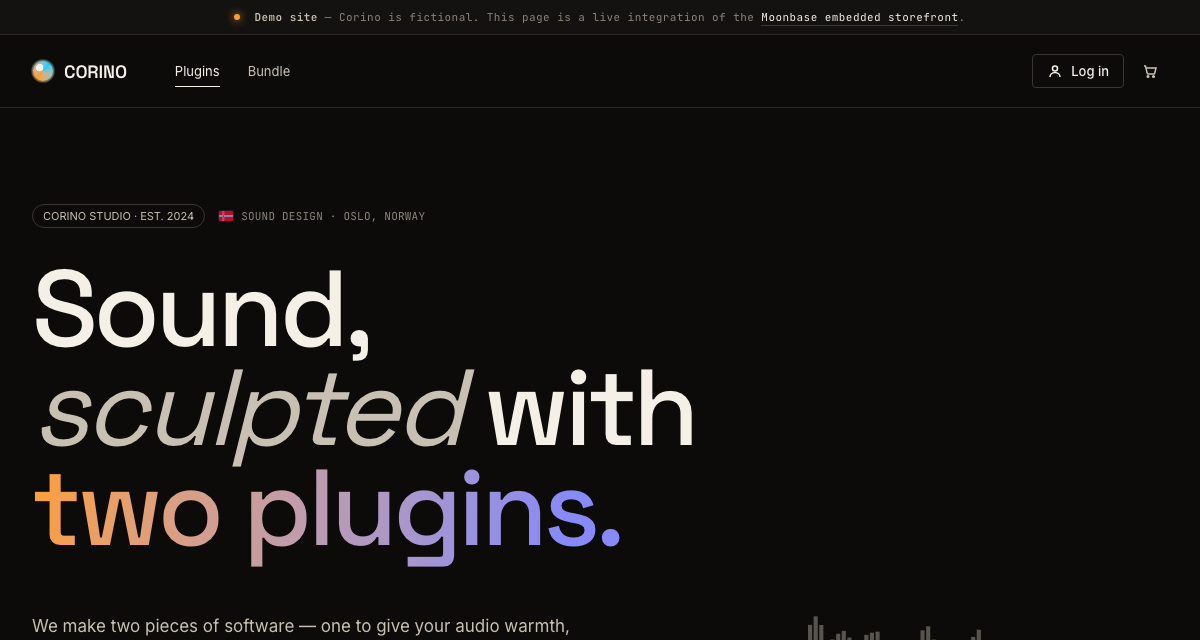
Try it live at corino.moonbase.sh — sign up with any email, add a plugin to your cart, and walk through the embedded checkout against the demo Moonbase account. Then read the source:
A single-file reference site demonstrating the embedded storefront end-to-end against the demo Moonbase account.
Forward events to analytics tools
The embedded storefront can forward its commerce and authentication events straight to the marketing and analytics tools you already use, with no event wiring or glue code required. Just hand Moonbase the same ids you use with each vendor, and it takes care of the rest:
<script src="https://assets.moonbase.sh/storefront/moonbase.js"></script>
<script>
    // TODO: Replace this with the URL of your Moonbase account
    Moonbase.setup('https://demo.moonbase.sh', {
        integrations: {
            metaPixel:        { pixelId: '1234567890' },
            googleAnalytics:  { measurementId: 'G-XXXXXXX' },
            googleTagManager: { containerId: 'GTM-XXXXXXX' },
            klaviyo:          { companyId: 'ABC123' },
            tiktokPixel:      { pixelId: 'C12345...' },
        },
    })
</script>
Meta Pixel, Google Analytics 4, Google Tag Manager, Klaviyo, and TikTok Pixel are supported out of the box. Enable only the providers you need, and leave the rest out.
The storefront never loads any of these SDKs for you.
It only forwards to the globals your page has already initialized with each vendor's own snippet (window.fbq, window.gtag, window.dataLayer, window.klaviyo, window.ttq).
Load order doesn't matter: if a global only appears after setup(), forwarding simply begins once it's there.
And if a provider is enabled but its global is never found, forwarding is a silent no-op, with a one-time console.warn so the misconfiguration is easy to spot.
Forwarding relies on each SDK's own consent state (for example Google Consent Mode, or your cookie banner gating fbq).
To hold off forwarding until a visitor opts in, leave the provider out of setup() and add it once consent is granted with Moonbase.configure(...).
Merge semantics apply per provider: pass one to add or update it, pass undefined to remove it, or omit it to leave it untouched, so enabling a provider after consent never disturbs the others.
// Start forwarding to Meta Pixel once the visitor has consented
onConsentGranted(() =>
    Moonbase.configure({ integrations: { metaPixel: { pixelId: '1234567890' } } }))

// Later, stop forwarding to Meta Pixel while leaving the rest running
Moonbase.configure({ integrations: { metaPixel: undefined } })
Your key commerce events (added-to-cart, checkout-initiated, and checkout-completed) are forwarded as each platform's equivalent (add to cart, begin checkout, and purchase), alongside the signed-in, signed-up, and signed-out events for identifying customers.
A couple of conventions are worth knowing: the forwarded order value is the amount the customer actually pays (post-discount and tax-inclusive), and completed purchases carry the order id as a deduplication key, so a single order is never counted twice.
For any event or provider the built-in integrations don't cover, you can still listen for events and forward them by hand, as described below.
Listen for events
For analytics destinations or events the built-in integrations above don't cover, or any time you simply want to react to the storefront yourself, you can register event listeners directly on the Moonbase instance. These work much like native HTML event listeners:
Moonbase.on('checkout-completed', event => console.log('Purchase completed:', event.order))
Event names are passed as plain strings, and each event comes with a matching payload (for example the completed order above).
These are all the available events you can currently listen for:
// Identity related events
'signed-in': {
    user: User
}
'signed-up': {
    user: User
}
'signed-out': {
    user: User
}

// Newsletter related events
// Fired for sign-ups through the drawer's own subscribe form and through
// your own `data-moonbase-form="subscribe"` forms.
'subscribed': {
    email: string
    name: string | null
    // `confirmation_sent` when the visitor still has to confirm by email
    status: 'subscribed' | 'confirmation_sent'
    // The customer group IDs requested, not necessarily the ones joined
    groupIds?: string[]
    source: 'drawer' | 'form'
    user?: User | null
}

// Voucher related events
'redeemed-voucher': {
    voucher: Voucher
    user: User
}

// Storefront related events
// Fired whenever the cached storefront data (products, pricing, ownership,
// cart) changes — useful as a single hook for re-rendering custom UI.
'storefront-updated': {
    storefront: Storefront
    user?: User | null
}

// Product related events
'downloaded-product': {
    product: OwnedProduct
    download: Download
    user?: User | null
}
'activated-product': {
    product: StorefrontProduct
    fulfillmentType: ActivationRequestFulfillmentType
    user?: User | null
}

// Promotion related events
// The surface is the one the promotion was rendered on, either
// 'banner' or 'popup'.
'promotion-shown': {
    promotion: StorefrontPromotion
    surface: PromotionSurface
    user?: User | null
}
'promotion-clicked': {
    promotion: StorefrontPromotion
    surface: PromotionSurface
    // Where the customer is being sent, the promotion's own call-to-action URL
    url: string
    user?: User | null
}
'promotion-dismissed': {
    promotion: StorefrontPromotion
    surface: PromotionSurface
    user?: User | null
}

// Cart related events
'added-to-cart': {
    item: CartItem
    currency: string
    user?: User | null
}
'coupon-rejected': {
    code: string
    // Why, as the buyer was told, when they typed the code into the checkout
    message?: string
    user?: User | null
}
'checkout-initiated': {
    order: OpenOrder
    total: Money
    user?: User | null
}
'checkout-closed': {
    // The cart. For a direct purchase, read `checkoutOrder` instead
    order: Order
    // The order the checkout was open for, absent if it closed before loading
    checkoutOrder?: Order
    // Whether the order completed before the checkout closed
    completed: boolean
    user?: User | null
}
'checkout-completed': {
    order: Order
    user?: User | null
}
One quirk on the promotion events: acting on a popup's call to action retires that popup, but it reports promotion-clicked only, never promotion-dismissed.
Reserve promotion-dismissed for measuring how often a campaign gets waved away.
For worked examples of forwarding events to analytics by hand (handy when you need a destination or custom mapping the built-in integrations don't provide), check out these articles:
See how you can hook up the embedded storefront to send e-commerce events to Google Analytics
If you are doing Facebook, Instagram or WhatsApp marketing, you should be enriching your Meta Pixel events with actions done by customers in the embedded storefront, learn more in this article.