Electron SDK
@moonbase.sh/electron adds Moonbase license activation to Electron apps, with a finished activation UI that presents itself whenever the app is locked. Create it in the main process, and there is no renderer code to write.
The package is published on npm as @moonbase.sh/electron under the MIT license. It is built on the Node.js SDK, and its activation UI has the same screens as the JUCE module and the Tauri plugin.
It supports:
- Browser-based activations, and offline activations by machine file
- Trials, with a days-remaining screen and an included-features list
- Startup validation, online re-validation and a configurable grace period
- Server-side deactivation, so users can free up an activation seat
- Add-ons, to try, buy and activate from inside the app
- Licenses that cover some versions, with an upgrade screen
- In-app update notifications with release notes and an installer download
- The activation UI in its own window, or as an overlay that locks one of the app's windows
window.moonbasefor your own renderers, if you would rather build your own UI
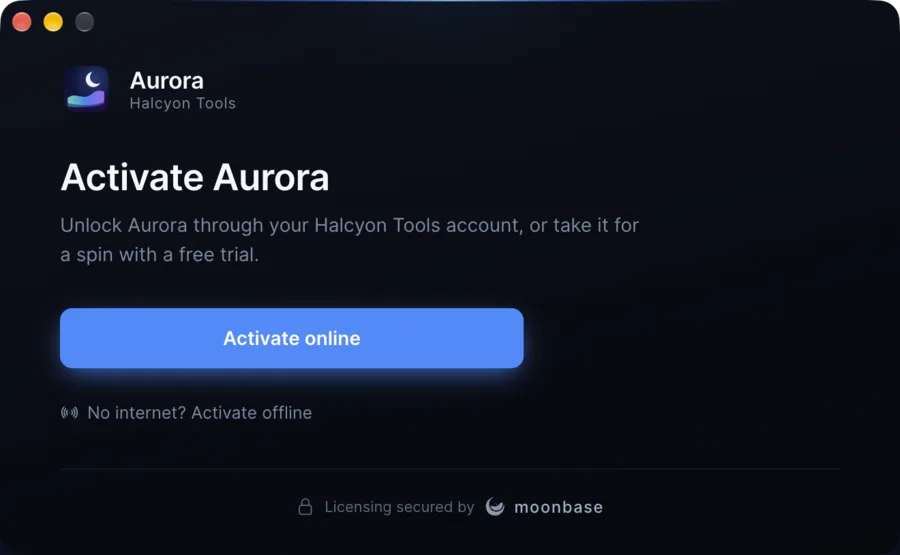
Here is the first thing a customer sees when they open an unlicensed app, with your own product name, logo and accent colour:
Requirements
- Electron 30 or newer
- Windows, macOS or Linux
Installation
Add the npm package to your app:
npm install @moonbase.sh/electron
Setup
Create the module in the main process with your account endpoint, product ID and public key. You will find all three in the Implementation guide for your product in the Moonbase app.
main.ts
import { createMoonbase } from '@moonbase.sh/electron'

const moonbase = createMoonbase({
  endpoint: 'https://your-account.moonbase.sh',
  productId: 'your-product',
  publicKey: MOONBASE_PUBLIC_KEY,
  ui: {
    productName: 'Solstice',
    manufacturerName: 'Helio Audio',
    accent: '#186cdc',
    logoSvg: SOLSTICE_LOGO_SVG,
    trialFeatures: [
      { label: 'Full DSP engine, unrestricted', included: true },
      { label: 'Use in commercial releases', included: false },
    ],
  },
})
moonbase.start()
start() validates the stored license and starts watching it. Call it once, before or after the app is ready. With no license, the activation UI comes up by itself.
The license is kept in license.mb in the app's user data folder, and app.getVersion() is the version reported to Moonbase. Pass licenseFile or appVersion to change either.
Bundling the main process
The module loads its activation UI from the folder it runs from. If you bundle the main process, as Electron Forge's Vite template does, add the module's Vite plugin, which copies the UI beside the bundle:
vite.main.config.ts
import { moonbase } from '@moonbase.sh/electron/vite'
import { defineConfig } from 'vite'

export default defineConfig({
  plugins: [moonbase()],
})
With another bundler, leave @moonbase.sh/electron out of the bundle, or copy the package's dist/ui folder and dist/ui-preload.cjs beside it. When the UI is missing, start() throws and names the folder it looked in.
The activation UI
Brand the UI through the ui options:
| Option | Default | |
|---|---|---|
productName | app.getName() | Shown throughout |
manufacturerName | none | Under the product name, and as the account the customer signs in to |
accent | #186cdc | The one brand colour: buttons, progress, step numbers. Any CSS colour |
logoSvg, logoPng | a sun mark in the accent | The product mark in the header. logoPng takes bytes or a path |
trialFeatures | none | The trial screen's included and excluded lines |
trialLengthDays | 14 | Shown when the license doesn't say |
showAddOns | off | An Add-ons row in the license details, to try, buy and activate the product's add-ons |
strings | built-in copy | Override any heading or body, including the copy for each reason the app locked |
showMoonbaseBadge | on | The "Licensing secured by moonbase" footer |
autoPresentOnLock | on | Present the UI when the app starts unlicensed, and whenever it loses its license |
autoPresentUpdate | on | Present the update screen when the app starts with a newer release it wasn't told to skip |
reduceMotion | off | Skip transitions. The system setting is honoured either way |
windowTitle | the product name | |
presentation | window | window, or overlay to lock one of the app's windows |
window | the app's first window | The window the overlay locks, and the activation window's parent |
To open the UI from a menu or button, optionally on a particular screen (license, update, offline or addons):
moonbase.present('license')
The screens, all driven by the license state:
- Welcome. Activate online through the browser, or activate offline. Once the app has lost its license, it says why.
- Waiting for activation. The browser is open, with a link to copy if it didn't, and Cancel.
- Success. A confirmation with a mini license card.
- Offline activation. Save the machine file, then drop or pick the license file the customer got back.
- Trial and Trial expired. Days left, the included and excluded features, and an unlock action.
- Upgrade needed. The license doesn't cover this version of the app. It says what the license covers, and offers the upgrade.
- License details. Who the license is issued to, the plan and expiry, the license ID with a Copy button, a seat counter, and a deactivate action that releases the seat server-side.
- Add-ons. The product's add-ons, each with a Try free, Buy or Activate action, when
showAddOnsis on. - Update available. The release notes, a download of the installer for this platform into the Downloads folder, and Skip this version.
There is no separate "Start free trial" button: Moonbase starts trials in the same browser flow as purchases, so "Activate online" covers both.
Locking the app
By default the activation UI opens in its own window and the app stays usable beside it, which suits an app with free features. To lock the app instead, present the UI over one of its windows:
const moonbase = createMoonbase({
  // ...
  ui: {
    productName: 'Solstice',
    presentation: 'overlay',
    window: () => mainWindow,
  },
})
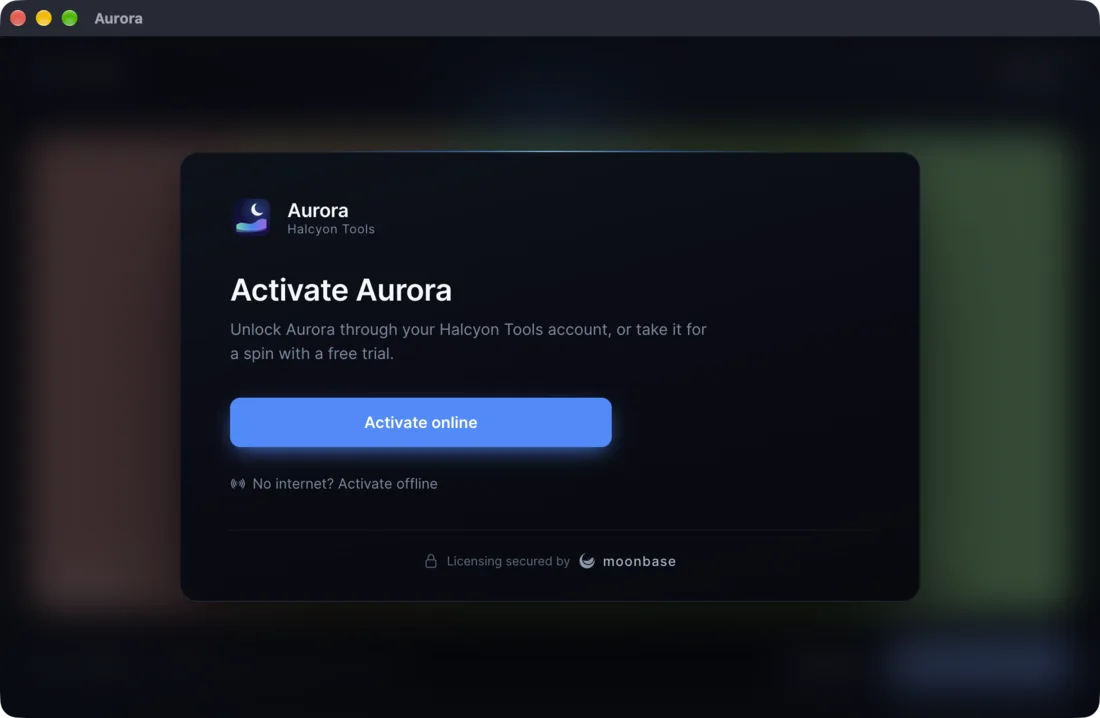
The same screens then float over the app's content, which is blurred behind them and takes no clicks or keys. While the app has no license the overlay can't be dismissed. Once it has one, it gets a close button and closes on Escape. The overlay keeps working if your page reloads.
The overlay locks one window. When that window closes while the app is unlicensed, the overlay locks the next window the app opens, such as the one a macOS app opens again from the dock. Any other windows stay usable.
Gating in the main process
The overlay locks the interface, but disabling a button in a renderer is only presentation. Gate paid features in the main process, where a renderer can't skip the check:
ipcMain.handle('export', async () => {
  if (!moonbase.isLicensed()) {
    void moonbase.present()
    return { error: 'Exporting needs a license.' }
  }
  // ...
})
isLicensed() is true with a license or a trial, and cheap enough to check anywhere. hasSubProduct(id) says whether to unlock an add-on, and license() returns the full license for other entitlement checks.
The renderer API
To show the license state in your own windows, expose window.moonbase from their preload script:
import { exposeMoonbase } from '@moonbase.sh/electron/preload'

exposeMoonbase()
Importing from @moonbase.sh/electron/renderer also types window.moonbase. A sandboxed preload can't require anything but Electron, so bundle it, as Electron Forge and electron-vite do.
state.status is one of loading, unlicensed, activating, licensed, trial, trialExpired or notCovered, and state.licensed says whether there is a valid license right now. Calls such as activate, activateOffline, refresh, deactivate, present and hasSubProduct act on it, with the same names as the Tauri plugin's frontend API. A failed call rejects with { kind, message }.
Every window with the preload may make every call. To limit them, pass rendererAccess: read-only allows only state, device, checkUpdate and present, none allows nothing, and a function decides per window. The built-in UI always gets what it needs.
To replace the built-in UI entirely, pass ui: false and build your screens on the renderer API. The activation controller describes each status and what runs in the background.
Licenses that cover some versions
Licenses that cover only some releases are in beta, and are switched on account by account. Reach out to support if you'd like to sell them.
A license bought outright can cover only some versions of your app, such as 12 months of updates or every version up to 2.x. When the license doesn't cover the app's version, the app locks on the Upgrade needed screen. The license stays stored, since it still covers the versions it did, and the screen offers the customer the upgrade.
Validation and offline use
The stored license is validated at startup, and online at most every 5 minutes (checkInterval). Without a network, a license activated online keeps working for 7 days after its last successful online check (gracePeriod), and then locks until it can be checked again. Both options take milliseconds.
Offline activation is built into the Welcome and Offline activation screens, so there is no code to write for it. See Offline activations for the customer-facing side of the flow.
Device identity
The module identifies the device with the cross-SDK Moonbase device fingerprint of the Node.js SDK. A license activated through any Moonbase SDK, such as a Tauri app or a JUCE plugin, validates in your Electron app, and the other way round.
Sample apps
The Electron sample repository has two Electron Forge apps wired to the public Moonbase demo account, so they activate out of the box. One uses this SDK's built-in UI as an overlay that locks the main window. The other builds its own activation window on the activation controller of the Node.js SDK.
Electron apps licensed through Moonbase, with the built-in activation UI or a UI of your own.