Gorilla Engine SDK
@moonbase.sh/gorilla-engine adds Moonbase license activation to Gorilla Engine plugins: the activation screens in a panel over your plugin's interface, which lock the plugin, and its MIDI and audio, until it is licensed.
The package is published on npm as @moonbase.sh/gorilla-engine under the MIT license. It is a React component for Gorilla Engine React that runs in your plugin's own JavaScript and draws with Gorilla Engine's native controls. It is built on the Node.js SDK, and has the same screens as the JUCE module.
It supports:
- Browser-based activations, and offline activations by machine file
- Trials, with a days-remaining screen and an included-features list
- Startup validation, online re-validation and a configurable grace period
- Server-side deactivation, so users can free up an activation seat
- Add-ons, to try, buy and activate from inside the plugin
- Licenses that cover some versions, with an upgrade screen
- In-app update notifications with release notes and an installer download
- MIDI and audio switched off while the plugin has no license
- One license shared by every instance of the plugin, in any number of hosts
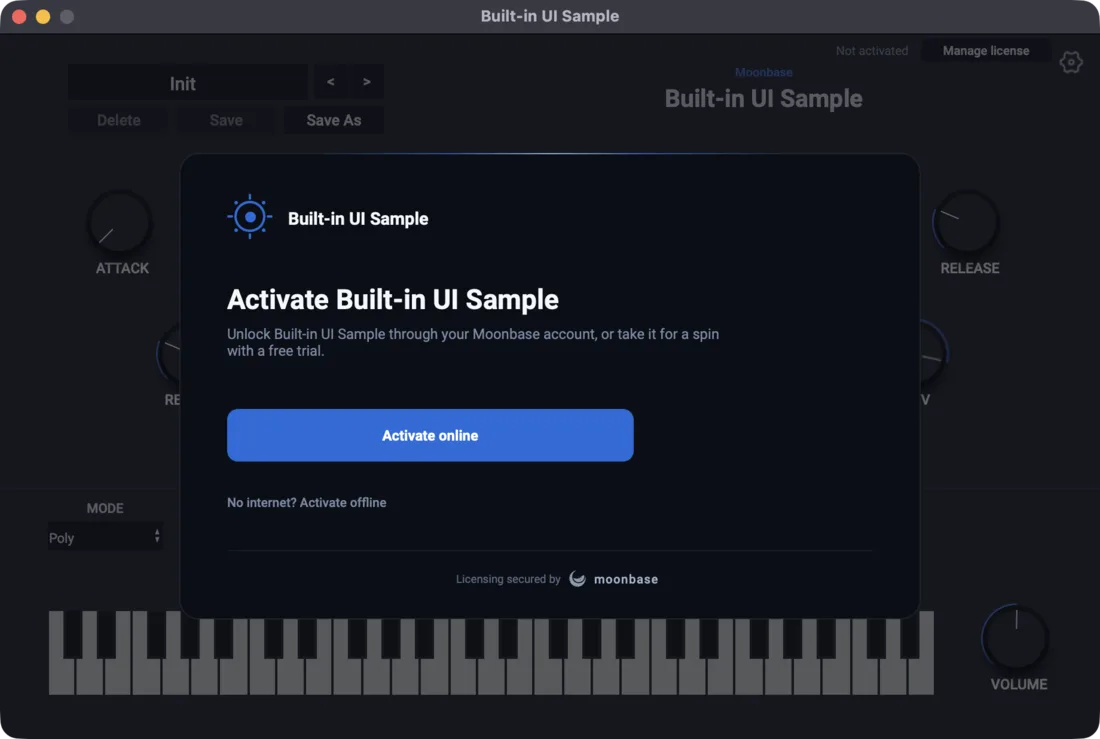
Here is the first thing a customer sees when they open an unlicensed plugin:
Requirements
- A Gorilla Engine plugin with a Gorilla Engine React interface, tested with Gorilla Engine React 1.6 and React 19
- macOS or Windows
Installation
Add the npm package to your plugin's interface project:
npm install @moonbase.sh/gorilla-engine
Setup
In your project's .ugep file, keep MIDI and audio off until the plugin's JavaScript has checked the license:
{
  "pluginConfig": {
    "audioEnabledOnStartup": false,
    "midiEnabledOnStartup": false
  }
}
Then create the module once, at the top level of your plugin's script rather than in a component, with your account endpoint, product ID and public key. You will find all three in the Implementation guide for your product in the Moonbase app. Render MoonbaseActivation last, so it lies over the rest of your interface:
import { createMoonbase, MoonbaseActivation } from '@moonbase.sh/gorilla-engine'

const moonbase = createMoonbase({
  endpoint: 'https://your-account.moonbase.sh',
  productId: 'your-product',
  publicKey: MOONBASE_PUBLIC_KEY,
  appVersion: '1.2.0',
  ui: {
    manufacturerName: 'Helio Audio',
    logo: 'images/logo.png',
    fonts: {
      regular: 'fonts/Inter-Regular.otf',
      medium: 'fonts/Inter-Medium.otf',
      semibold: 'fonts/Inter-SemiBold.otf',
    },
  },
})
moonbase.start()

function App() {
  return (
    <geLabel width={920} height={590}>
      <PluginUI />
      <MoonbaseActivation moonbase={moonbase} width={920} height={590} />
    </geLabel>
  )
}
Set appVersion to your plugin's version, and keep it in step with pluginConfig.version in the .ugep, since Gorilla Engine has no version of its own for the module to read. It is the version reported to Moonbase, and compared with your releases.
Before you build, check the project with the module's doctor command. It reads your .ugep and assets, and shows any fix as a diff: the startup settings, that appVersion matches the project's version, and that the fonts and logo are among the plugin's assets.
npx @moonbase.sh/gorilla-engine doctor
While the plugin has no license, the overlay comes up by itself, covers the interface, takes every click, and can't be closed. Once the plugin is licensed it gets a close button. To bring it back from a button, optionally on a particular screen (license, update, offline or addons):
<geButton text="Manage license" onClick={() => moonbase.present('license')} />
Branding
Brand the overlay through the ui options:
| Option | Default | |
|---|---|---|
productName | the plugin's name | Shown throughout |
manufacturerName | none | Under the product name, and as the account the customer signs in to |
accent | #186cdc | The one brand colour: buttons, progress, step numbers |
logo | a sun mark in the accent | The product mark in the header, as an image among the plugin's assets |
fonts | the system font | regular, medium, semibold and mono, as .otf files among the plugin's assets |
trialFeatures | none | The trial screen's included and excluded lines |
trialLengthDays | 14 | Shown when the license doesn't say |
showAddOns | off | An Add-ons row in the license details, to try, buy and activate the product's add-ons |
strings | built-in copy | Override any heading or body, including the copy for each reason the plugin locked |
showMoonbaseBadge | on | The Moonbase footer |
autoPresentOnLock | on | Present the overlay when the plugin opens unlicensed, and whenever it loses its license |
autoPresentUpdate | on | Present the update screen when the plugin opens with a newer release it wasn't told to skip |
reduceMotion | off | Skip the fades and transitions. The license, and MIDI and audio with it, change at once either way |
The screens, all driven by the license state:
- Welcome. Activate online through the browser, or activate offline. Once the plugin has lost its license, it says why.
- Waiting for activation. The browser is open, with a link to copy if it didn't, and Cancel.
- Success. A confirmation with a mini license card.
- Offline activation. Save the machine file, then drop or pick the license file the customer got back.
- Trial and Trial expired. Days left, the included and excluded features, and an unlock action.
- Upgrade needed. The license doesn't cover this version of the plugin. It says what the license covers, and offers the upgrade.
- License details. Who the license is issued to, the plan and expiry, the license ID with a Copy button, a seat counter, and a deactivate action that releases the seat server-side.
- Add-ons. The product's add-ons, each with a Try free, Buy or Activate action, when
showAddOnsis on. - Update available. The release notes, a download of the installer for this platform into the Downloads folder, and Skip this version.
MIDI and audio
The module turns your plugin's MIDI and audio off when it starts, on once the stored license checks out, with a license or a trial, and off again whenever the license is lost. The .ugep settings from Setup cover the moment before your script runs. Pass lockAudioAndMidi: false to handle it yourself.
To gate parts of your interface, read the license state with the useMoonbaseState hook, which re-renders your component whenever it changes:
import { useMoonbaseState } from '@moonbase.sh/gorilla-engine'

function PluginUI() {
  const state = useMoonbaseState(moonbase)
  return (
    <geLabel width={920} height={590}>
      <MainPanel />
      {state.activeSubProducts.includes('drum-kit') && <DrumKitPanel />}
    </geLabel>
  )
}
state.licensed says whether there is a valid license right now, state.activeSubProducts lists the add-ons to unlock, and state.status is one of loading, unlicensed, activating, licensed, trial, trialExpired or notCovered. Outside a component, check moonbase.isLicensed() and moonbase.hasSubProduct(id). The activation controller describes each status, and every one of its methods is on moonbase too.
Instances
Every instance of your plugin, in any number of hosts, shares one license. Activating in one unlocks the others within a few seconds, and deactivating locks them. By default the license is kept in your manufacturer folder:
- macOS:
~/Library/Application Support/<manufacturer>/<plugin>/license.mb - Windows:
%APPDATA%\<manufacturer>\<plugin>\license.mb
The folder is named after the plugin as it was built, so renaming the plugin would lose your customers' licenses. Set storage to name the folder for good, and previousLicenseFiles to bring a license over from where an earlier version kept it:
const moonbase = createMoonbase({
  // ...
  storage: { manufacturer: 'Helio Audio', plugin: 'Solstice' },
  previousLicenseFiles: [path.join(os.homedir(), 'Library/Application Support/Helio Audio/Solstice 1/license.mb')],
})
A previous license is copied over only when the plugin has none of its own, and is checked like any stored license. Pass licenseFile to keep the license somewhere else entirely.
Licenses that cover some versions
Licenses that cover only some releases are in beta, and are switched on account by account. Reach out to support if you'd like to sell them.
A license bought outright can cover only some versions of your plugin, such as 12 months of updates or every version up to 2.x. When the license doesn't cover appVersion, the plugin locks on the Upgrade needed screen. The license stays stored, since it still covers the versions it did, and the screen offers the customer the upgrade.
Validation and offline use
The stored license is validated when the plugin opens, and online at most every 5 minutes (checkInterval). Without a network, a license activated online keeps working for 7 days after its last successful online check (gracePeriod), and then locks until it can be checked again. Both options take milliseconds.
Offline activation is built into the Welcome and Offline activation screens, and uses Gorilla Engine's file dialogs for the machine file and the license file, so there is no code to write for it. See Offline activations for the customer-facing side of the flow.
Device identity
The module identifies the device with the cross-SDK Moonbase device fingerprint of the Node.js SDK. A license activated through any Moonbase SDK, such as a JUCE build of the same product, validates in your Gorilla Engine plugin, and the other way round.
Support reports
moonbase.diagnostics() returns a report to paste into a support request: the module and SDK versions, where the license is kept, what the host can do, and whether MIDI and audio are on. It contains no license, names, emails or device identity. Pass onError to hear about anything the overlay couldn't do, such as open the browser.
Sample plugins
The Gorilla Engine sample repository has two synth plugins, made with create-gorilla-engine-plugin and wired to the public Moonbase demo account, so they activate out of the box. One uses this SDK's built-in overlay. The other draws its own activation panel on the activation controller of the Node.js SDK.
Gorilla Engine plugins licensed through Moonbase, with the built-in activation overlay or a panel of your own.
The Gorilla Engine template turns on experimentalDebuggerSupport for development. Set it to false before you ship, since debugger access makes your plugin's JavaScript, and its license check with it, easier to tamper with.